You can easily add participants to an ongoing survey.
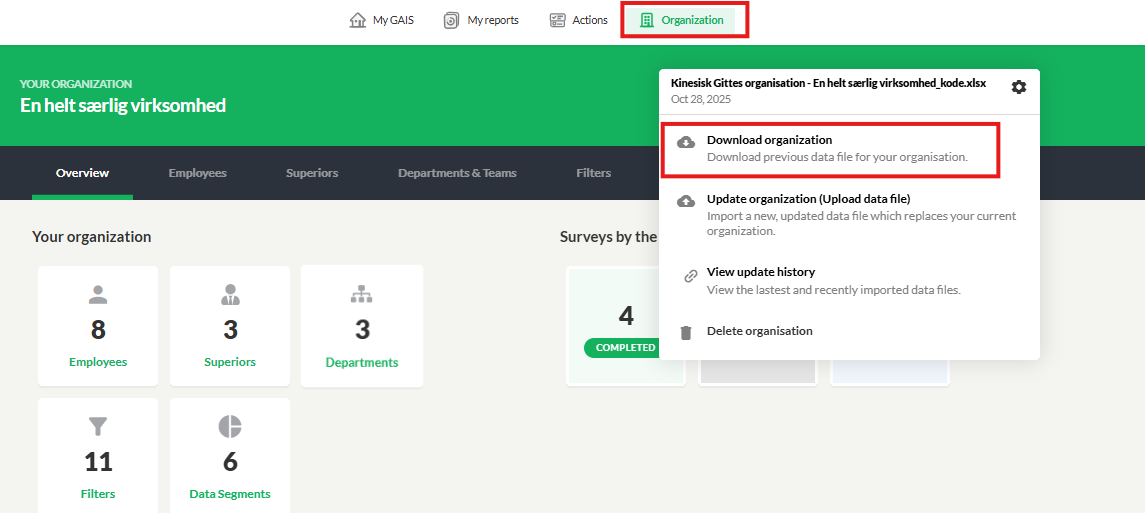
1. Download your data file
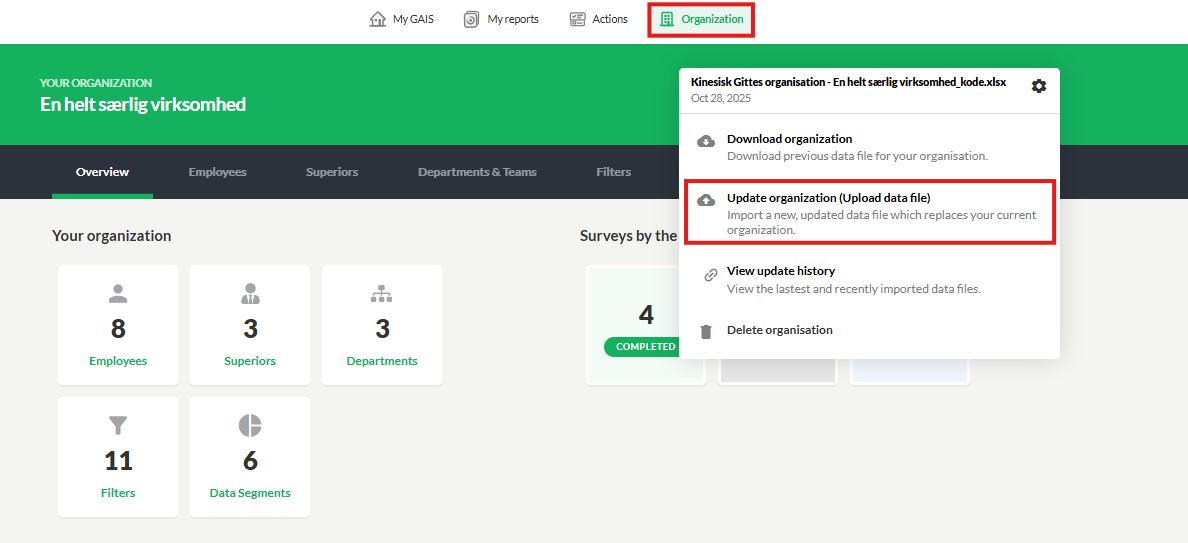
2. Add the participants to the data file
Remember to complete all data fields.

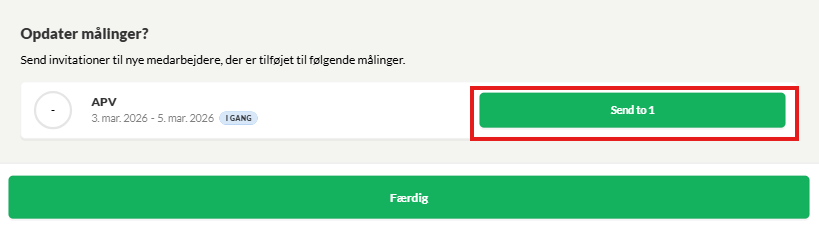
4. Send the survey to the new participants
If you have an ongoing survey, you will now be asked whether you want to send invitations to the new participants. Click Send, and the new participants will receive their invitations.
You do not need to do anything else.
5. Special instructions if you are using the code solution
Follow the same steps as above.
When adding a new participant who will be invited to the survey via a code, write code in the Distribution column.
In the Email field, create a fictitious email address based on the structure that was already set up when configuring the code solution.

- The yellow highlight is typically your company name. Use the same spelling as the other fictitious email addresses already in the data file.
- The green highlight is a unique combination of letters and numbers. Create a combination that does not already exist in your data file.
- The blue highlight is a standard that is always used in GAIS. Enter it exactly as shown here.
Upload the data file.
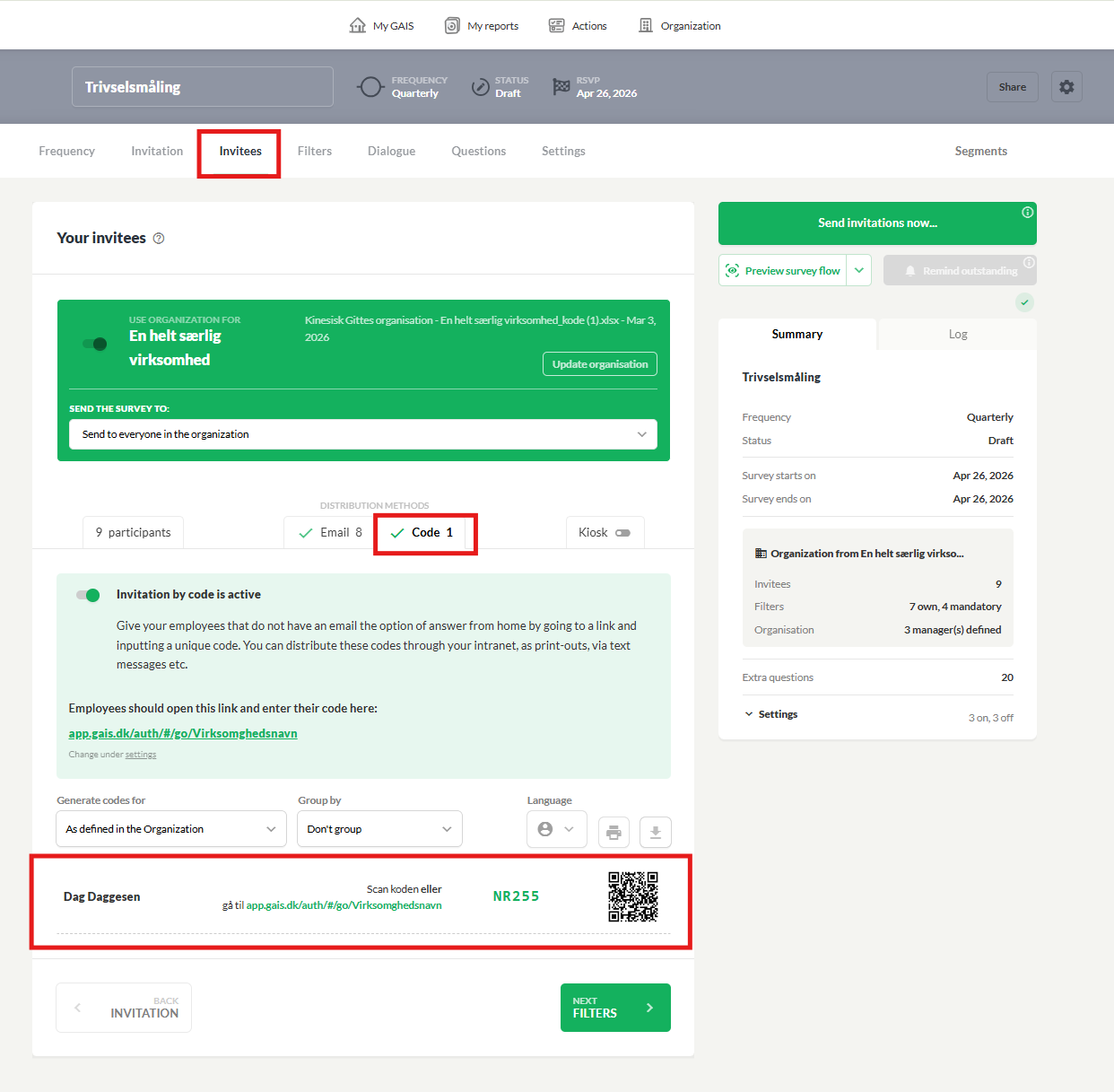
Under Participants in the survey setup, you will now find the code for the newly added participant. Remember to click Code.
Was this article helpful?
That’s Great!
Thank you for your feedback
Sorry! We couldn't be helpful
Thank you for your feedback
Feedback sent
We appreciate your effort and will try to fix the article